SVG to PDF Converter: 100% Lossless & Private (No Upload)
Convert your SVG graphics into professional, print-ready PDFs without losing a single detail. Most online converters take the easy route—flattening your artwork into pixels. Our engine works differently, maintaining the mathematical precision of your original paths.
SVG → PDF
Convert SVG files to high-quality PDF instantly — right in your browser.
Files never leave your device. No account needed.
Professional Grade PDF Export Without the Rasterization Trap
The biggest failure of standard online converters is rasterization. When you use a typical “SVG to PDF” site, they often convert your scalable vector code into a fixed-resolution image (like a PNG) and hide it inside a PDF wrapper. The result? Blurry edges, pixelated curves, and a file that loses quality the moment you try to scale it up.
True Resolution Independence
Our tool treats your SVG for what it is: a set of precise XML instructions. By utilizing WebAssembly (Wasm), we perform the conversion directly in your browser, translating Bézier curves, gradients, and stroke data into native PDF vector objects.
This ensures resolution independence. Whether you are viewing the document on a smartphone or printing it on a massive billboard, the lines remain mathematically perfect.
Why Vector Integrity Matters:
- Infinite Scalability: Unlike raster-based exports, your paths remain sharp at any zoom level.
- Small File Footprint: By preserving paths rather than high-DPI pixels, your PDFs remain lightweight and easy to share.
- Print-Ready Precision: Perfect for Inkscape and Adobe Illustrator users who need to bridge the gap between web design and physical print without font corruption or path distortion.
- Technical Compliance: Our engine respects the original SVG viewport and coordinates, ensuring that your layout logic is mirrored exactly in the final document.
By handling the processing on your local hardware, we eliminate the need for server-side rendering, which is where most quality loss and privacy risks occur. You get a professional, high-fidelity export that meets the standards of modern design workflows.
How to Convert SVG to PDF in Seconds (Locally)
Converting your files shouldn’t involve waiting in a server queue or worrying about file size limits. Because our tool runs locally in your browser, the process is streamlined and instantaneous. Follow these three simple steps to generate professional-grade documents.
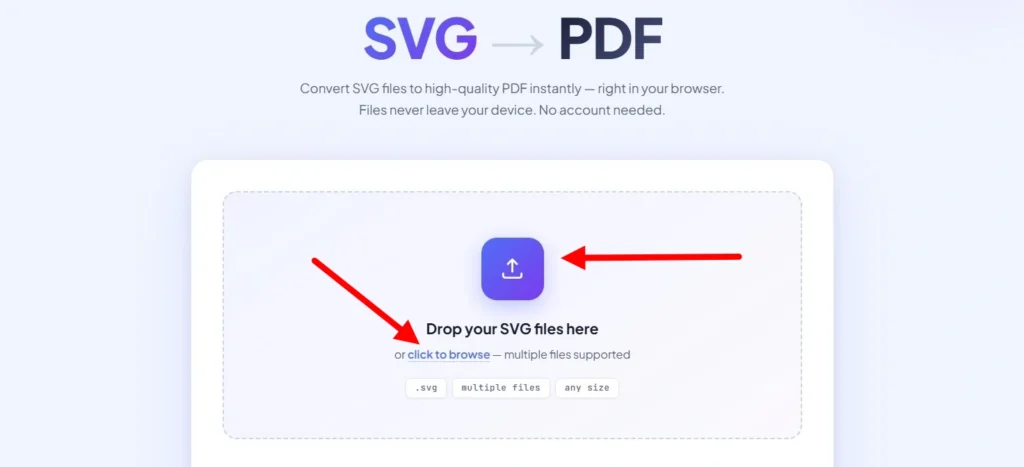
Step 1: Select or Drop Your SVG
Drag your files directly into the conversion zone or click to browse your folders. We support batch processing, so you can drop multiple SVGs at once. Unlike server-based tools that cap your uploads at a few megabytes, our client-side architecture allows you to process large, complex vector files of any size without timeout errors.
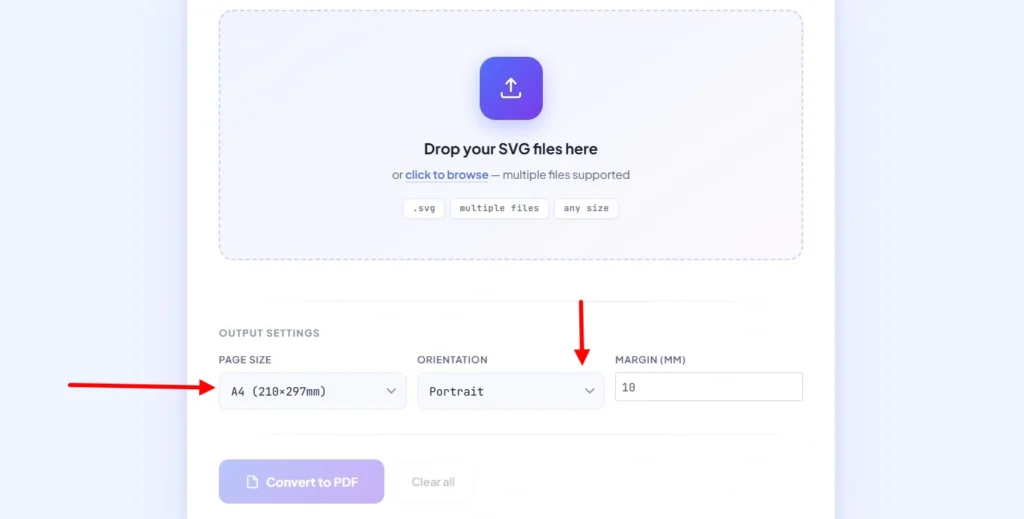
Step 2: Define Your Output Settings
Tailor the PDF to your specific project needs. You can choose from standard document formats like A4, A3, Letter, or Legal. For designers who need to maintain the exact aspect ratio of their artwork, our “Fit to SVG” option automatically adjusts the PDF dimensions to match your vector’s viewport. You can also toggle between Portrait and Landscape orientations to ensure your layout is perfectly positioned.
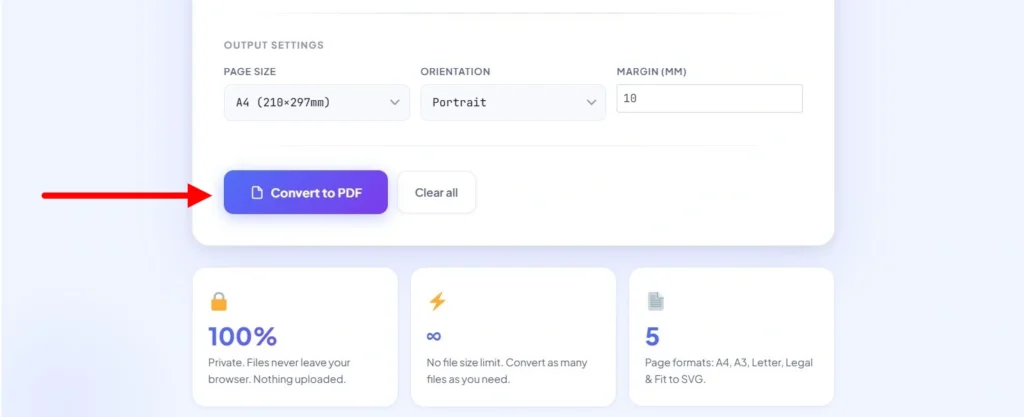
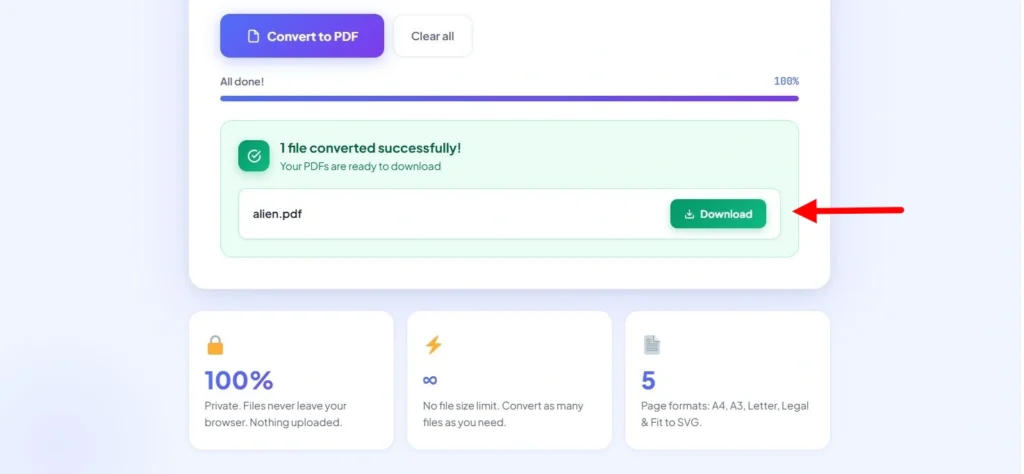
Step 3: Instant Local Conversion
Once your settings are dialed in, click “Convert to PDF.” The conversion happens immediately on your device using your browser’s hardware capabilities. There is no “uploading” or “processing” status bar because the data never leaves your machine. Your download button appears the moment the computation is finished—typically in under a second.
Precision Control for Designers and Developers
Modern workflows require more than a “one-size-fits-all” export. We built this tool to bridge the gap between web-based SVG code and high-fidelity document standards, providing the granular control that professionals expect from desktop software.
Handling Complex Vector Geometry
Our engine is designed to parse intricate SVG XML trees with precision. Whether your file contains nested groups (<g> tags), complex clipping paths, or CSS-styled elements, the tool accurately maps these to native PDF objects. We ensure that transparency layers and gradients are preserved, making the output suitable for further editing in software like Adobe Illustrator or for direct integration into Linux-based production pipelines.
Developer-Centric Flexibility
- Custom Margin Control: Set exact margins in millimeters (mm) to meet specific printing or binding requirements.
- Cross-Platform Consistency: Since the tool is entirely browser-based, it offers a consistent experience across Linux, Windows, and macOS. There’s no need to deal with command-line dependencies or software installations.
- Code-to-Document Workflow: For developers working with dynamically generated SVG code, this tool acts as a reliable sandbox to verify how code-based vectors translate into static document formats.
Why Privacy-First Conversion is the New Standard
When you use popular legacy converters like Adobe Acrobat Online or I Love PDF, you are typically required to upload your documents to a remote server. For a simple icon, this might seem harmless. However, for professionals handling proprietary blueprints, sensitive financial charts, or unreleased branding assets, that “upload” is a significant security vulnerability. Once a file leaves your device, you lose control over where it is stored, who can access it, and how long it remains on a third-party server.
This is the primary reason why privacy-conscious communities on Reddit and specialized design forums have shifted away from traditional “cloud” converters. Our tool represents a new standard: No-Upload Conversion. By utilizing client-side processing, your data never traverses the internet. The entire transformation happens within your browser’s sandbox. If you are working under strict NDAs or corporate privacy policies, this local-first approach isn’t just a feature—it’s the only way to ensure 100% data sovereignty.
Understanding the Vector Workflow: From SVG XML to PDF
To appreciate the value of a clean conversion, it helps to understand the underlying technology. An SVG (Scalable Vector Graphic) isn’t actually an image in the traditional sense; it is a text-based XML file containing instructions for drawing lines, curves, and colors. This code-based nature makes it perfect for the web but difficult for standard office software to handle reliably.
Converting these XML instructions into a PDF (Portable Document Format) serves three critical professional needs:
- Universal Consistency: While different browsers may render SVG code slightly differently, a PDF locks the layout, fonts, and geometry into a static document that looks identical on any device.
- Print-Ready Output: Unlike SVGs, which are native to the RGB color space of digital screens, PDFs can be optimized for CMYK color profiles, ensuring your designs translate accurately to physical ink.
- Long-Term Archival: PDF/A standards are designed for decades of storage. Converting your vector assets to PDF ensures they remain accessible and uncorrupted long after modern web standards have evolved.
SVG to PDF Conversion: Common Questions & Expert Tips
Why is my PDF blurry in other tools but sharp here?
Most converters perform “rasterization”—they take a snapshot of your SVG and turn it into a grid of pixels (like a JPG). If you zoom in, the edges become jagged. Our tool preserves the vector paths, meaning your PDF contains the original mathematical curves. You can zoom in 1000%, and the edges will remain perfectly crisp.
Can I convert SVG code directly?
Yes. Since an SVG is just code, you can paste your XML into a plain text editor (like Notepad), save it with a .svg extension, and drop it into our converter. This is a common workflow for developers who generate charts or icons programmatically and need a quick, high-fidelity document export.
Is there a file size limit for high-resolution vectors?
Because the conversion happens on your local hardware using your computer’s RAM, we do not impose the arbitrary 10MB or 50MB limits found on server-based sites. Whether you have a simple logo or a massive, multi-megabyte architectural map, our tool can handle it as long as your browser has the resources to render it.
Does this tool work on mobile browsers for Canva or Inkscape files?
Absolutely. Our interface is fully responsive. Whether you’ve exported a design from Canva on your tablet or need to convert an Inkscape file on your phone, the browser-side engine works identically across iOS and Android without requiring any app downloads.
Your Files. Your Data. Your Control.
The internet shouldn’t require a trade-off between convenience and privacy. Most web utilities operate on a “cloud-first” model, where your data is the commodity. We built this converter to challenge that norm. By leveraging WebAssembly (Wasm) technology, we’ve effectively moved the power of a desktop application directly into your browser tab.
There is no hidden database, no temporary server storage, and no “cleanup script” that runs after an hour—because your files never leave your machine in the first place. This architecture provides a robust, software-like experience without the traditional “software-download” baggage. You don’t have to worry about compatibility issues, registry entries, or suspicious installers.
Whether you are a freelancer protecting your intellectual property or a corporate developer handling sensitive XML schemas, this tool ensures that your workflow remains entirely local. We believe that professional-grade tools should respect your autonomy, providing a fast, reliable, and invisible service that puts you—not the server—in total control of your digital assets.