SVG to PDF Converter – Free Online, No Upload
Convert SVG files to high-quality PDF in your browser. Files stay on your device, and vector mode preserves supported shapes and paths. No signup or watermark. Limits are 20 MB per file, 50 files per batch, and 80 MB total.
SVG → PDF
Convert SVG files to PDF in your browser.
No file uploads. No account needed.
Preview
Artwork is centered and scaled to fit inside the margins without cropping.
Vector mode keeps supported shapes and paths sharp. For exact custom typography, convert text to paths first. Image mode keeps the browser-rendered appearance but does not preserve vectors or selectable text.
What Is an SVG to PDF Converter?
An SVG to PDF converter transforms Scalable Vector Graphics files — XML-based vector images used for logos, icons, and illustrations — into Portable Document Format files that open on any device without specialized software.
Vector mode preserves supported shapes and paths instead of rasterizing the entire SVG. Image mode renders the artwork as a raster image inside the PDF. Custom fonts are not embedded automatically; convert text to paths before uploading if you need exact vector typography.
The output file works everywhere. Windows, macOS, Linux, iOS, and Android all support PDF natively, with no plugin or reader setup required. That universal compatibility is the core reason most people convert SVG to PDF — sending a raw SVG to someone on an iPhone often results in a blank preview, while a PDF opens instantly.
SVG itself is an open standard developed by the World Wide Web Consortium (W3C), first published in 2001. PDF was created by Adobe Systems in 1993 and is now maintained as the ISO 32000 international standard. A good converter respects both specifications so your file renders consistently across readers, operating systems, and printers.
How to Convert SVG to PDF in Your Browser
- Drop your SVG files into the upload area, or click to browse. The tool accepts up to 50 files per batch, with a limit of 20 MB per file and 80 MB total.
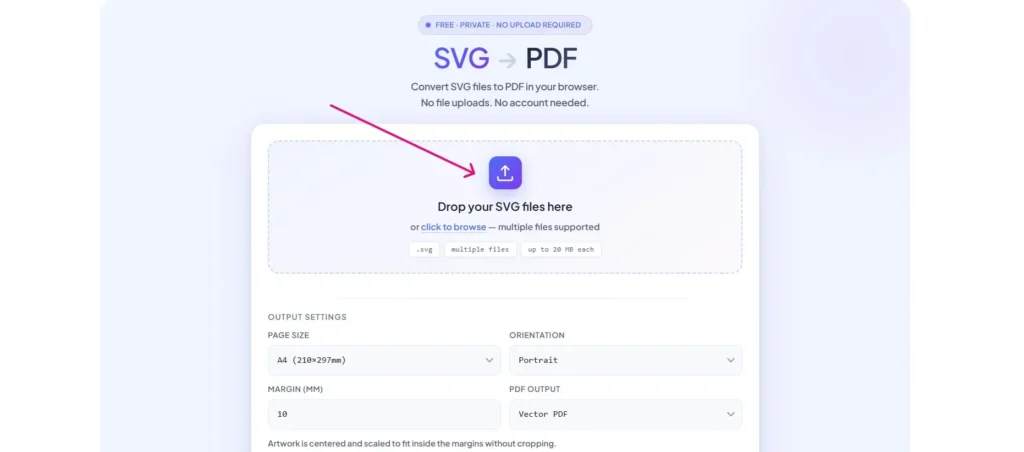
- Choose your page size — A4, A3, US Letter, US Legal, or Fit to SVG.
- For standard paper sizes, choose Portrait or Landscape. Fit to SVG uses the artwork’s dimensions and disables the orientation setting.
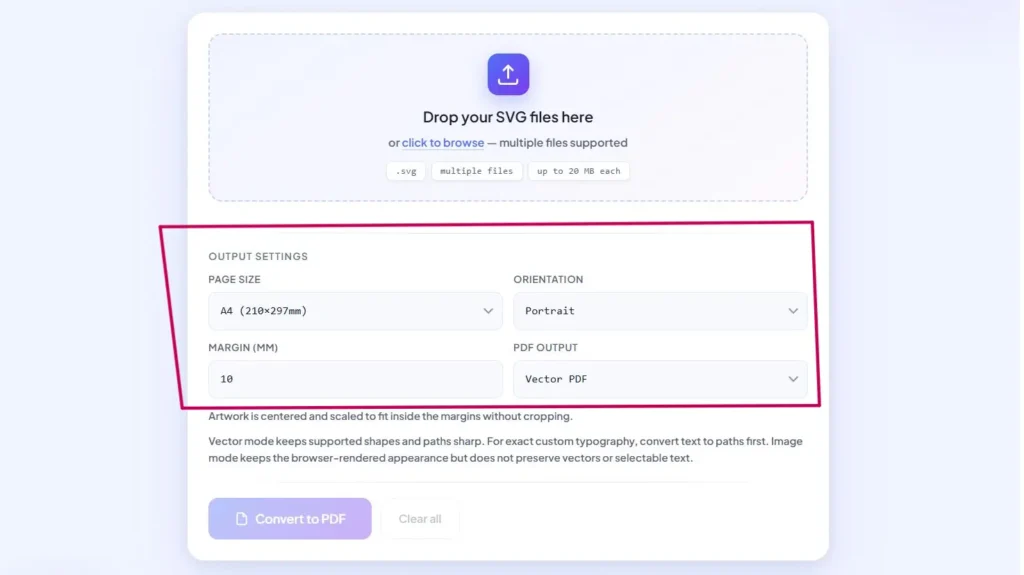
- Adjust the margin in millimeters if you need padding around the artwork.
- Click Convert to PDF. Conversion runs entirely in your browser using JavaScript. Nothing gets uploaded.
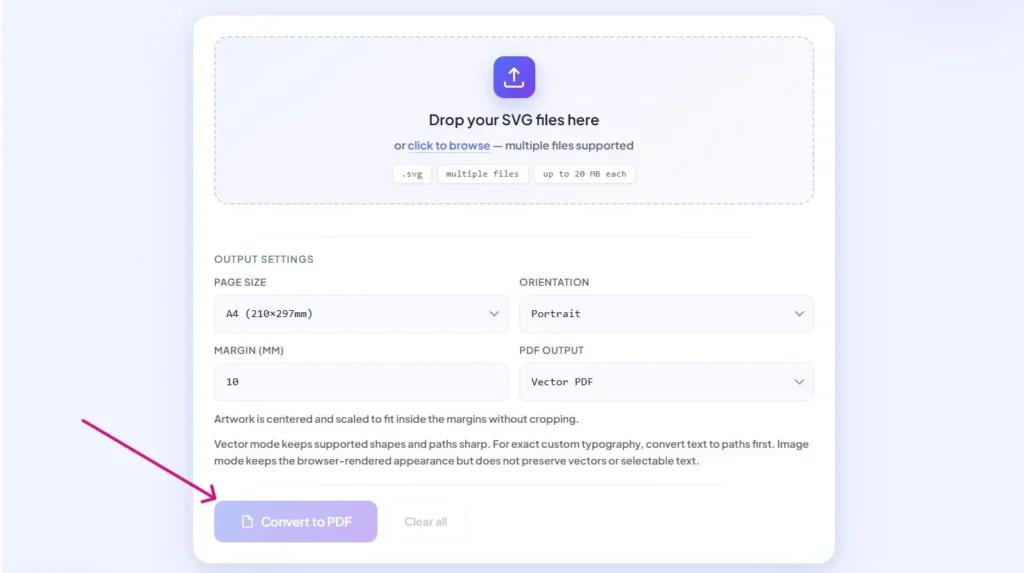
- When conversion finishes, download each PDF individually or use Download all PDFs.
The Fit to SVG option is worth explaining because most converters skip it. When you select it, the PDF page size is calculated from the SVG’s width and height, using the viewBox when dimensions are missing. With a zero margin, Fit to SVG adds no page padding; standard paper sizes scale the artwork to fit within the selected margins. An SVG sized at 800×600 pixels produces a PDF page of approximately 211.67×158.75 mm, equivalent to 600×450 PDF points, when Fit to SVG is selected. It’s the right choice for logos, icons, diagrams, and any graphic where the native dimensions matter more than fitting a standard paper size.
Why Convert SVG to PDF? People Actually Do This For Five Reasons
Sharing across devices that don’t handle SVG well. Email an SVG to someone on an iPhone and they’ll usually see a blank attachment preview — iOS Mail doesn’t render SVG inline. Send the same file to an Android user and results are hit or miss depending on their email client. PDF sidesteps the whole problem. It opens in every mail app, every browser, every messaging platform, on every phone and laptop, without anyone installing anything.
Submitting files to print shops
Commercial printers almost universally require PDF for press-ready artwork, and most won’t accept SVG at all. For color-managed print jobs, shops often ask for PDF/X — a subset of the PDF standard built specifically for graphic exchange, with embedded fonts and locked color profiles. If your work is going to a printer, converting to PDF isn’t optional; it’s the baseline requirement.
Feeding craft cutting machines
Cricut Design Space does not accept PDF uploads. For Cricut Print Then Cut, prepare and print the project through Design Space so the printed artwork and cut sensor marks follow its supported workflow.
Delivering work to clients cleanly
A PDF can preserve supported vector artwork for sharing, but it remains editable with suitable PDF-editing software and does not automatically lock its colors or contents. SVG invites tinkering. PDF treats your deliverable as finished.
Archiving technical and design documentation.
ISO 32000 specifies the PDF format; PDF/A, defined by ISO 19005, adds requirements for preserving electronic documents over time. SVG is stable too, but PDF has the stronger institutional track record for long-term document archiving.
Does SVG to PDF Conversion Preserve Vector Quality?
Yes — when the conversion is done correctly, your SVG’s vector paths, shapes, and geometry carry over to the PDF, which means the output stays crisp at any zoom level or print size. That’s the main reason people choose PDF over raster formats like PNG or JPG for sharing vector artwork.
The nuance matters, though. Simple paths, strokes, fills, and basic shapes translate cleanly — they remain fully vector in the final PDF. Gradients usually survive, but complex fills sometimes get simplified depending on the converter. Filter effects like drop shadows, Gaussian blurs, and feGaussianBlur are where most converters struggle; these often get rasterized into embedded bitmaps because PDF’s native rendering model handles them differently than SVG’s. In this tool, vector mode supports basic PDF font families and rejects unsupported fonts or characters. It does not automatically convert text to paths; do that in your design app before uploading if needed. Any raster image embedded inside your SVG (a PNG or JPG referenced via <image>) stays raster in the PDF — conversion can’t vectorize pixels.
SVG vs PDF — What’s the Difference?
SVG and PDF both store vector graphics, but they’re built for different jobs. SVG is a markup language for two-dimensional images, designed to live on the web. PDF is a document format, designed to preserve how a page looks across every device and printer. Knowing which to use comes down to what you’re trying to do with the file.
| Aspect | SVG | |
|---|---|---|
| Format type | Vector image (XML markup) | Document format |
| Developed by | W3C (2001) | Adobe (1993), now ISO 32000 |
| Scalability | Vector elements scale without pixelation; embedded raster images do not. | Preserves vectors; rasters stay raster |
| Editability | Text-editable in any editor | Requires PDF editor |
| File size (typical) | Small for simple graphics | Varies; larger with embedded fonts/images |
| Mobile support | Limited native support | Universal |
| Print-ready | Not by default | Depends on the PDF’s settings and the printer’s requirements. |
| Animation | Supported (SMIL/CSS) | Not supported in standard PDF |
Use SVG when the file will live on the web, inside an app, or inside a design tool where it might need further editing — logos in a style guide, icons in a component library, illustrations on a landing page. Use PDF when the file is finished and needs to travel — client deliverables, print shop submissions, archived documentation, anything that has to render the same way on the recipient’s screen as it does on yours.
Is It Safe to Convert SVG to PDF Online?
Local processing avoids uploading your files to a conversion server, but security also depends on the website’s code and your device. Most online converters upload your SVG to a server, run the conversion there, and delete the file later — sometimes after an hour, sometimes after 24 hours, sometimes longer. This tool works differently.
The conversion runs in your browser using JavaScript. Your SVG is read locally, rendered to PDF locally, and saved to your device locally. The converter does not upload or store your selected files on a server. It downloads its conversion libraries when you first select a file. There’s no account to create, no email to enter, and no backend holding your file at any point during the process.
This matters for anyone working with sensitive material — unreleased logos, client artwork under NDA, internal diagrams, design work you haven’t published yet. Server-based converters like CloudConvert, PDF24, and Zamzar are legitimate services with strong security practices and clear retention policies. But “secure upload” is still upload. Client-side conversion removes the question entirely, because there’s no file in transit to intercept and no server copy to breach.
Keeping your device and browser secure helps protect local files, but it does not guarantee the security of every website or conversion.
SVG to PDF for Specific Use Cases
Converting SVG to PDF for Cricut and Silhouette
Cricut Design Space accepts SVG files directly for cutting, so you don’t need to convert for the cut itself. For Cricut Print Then Cut, prepare and print the project through Design Space, then load the printed sheet into the cutting machine. For Silhouette Print & Cut, prepare the artwork, cut lines and registration marks in Silhouette Studio; converting the SVG to PDF is not a required step.
SVG to PDF for Print Shops and Commercial Printing
Most commercial printers require PDF files and many won’t accept SVG at all. For press submission, follow the printer’s requested PDF/X standard: PDF/X-1a requires flattened transparency, while PDF/X-4 supports live transparency. This tool outputs RGB PDFs, which is correct for screen use and digital print, but commercial offset printing usually requires CMYK. If your job is going to press, convert colors to CMYK in Adobe Acrobat Pro or Adobe Illustrator after exporting from this tool. If your SVG contains embedded raster images, check their resolution at the final print size. Around 300 ppi is commonly used for high-quality close-viewed prints; larger prints viewed from a distance may need less.
SVG to PDF in Adobe Illustrator
Open the SVG in Illustrator, then go to File → Save As and choose Adobe PDF from the format dropdown. In the dialog that follows, the Preserve Illustrator Editing Capabilities checkbox keeps the file round-trippable — you can reopen it in Illustrator later without losing layer structure or editability, at the cost of larger file size. For print submission, select the [PDF/X-1a:2001] preset, which flattens transparency and locks the color space for predictable press output.
SVG to PDF in Inkscape (Free Alternative)
Open the file in Inkscape, then File → Save As and choose Portable Document Format (*.pdf). The default export settings work for most uses. For developers or anyone converting in bulk, Inkscape has a command-line mode:
inkscape --export-filename=output.pdf input.svgYou can script this across an entire folder of SVG files with a short shell loop, which is faster than clicking through the GUI for each one.
Converting SVG to PDF Programmatically (Python, Node.js, Command Line)
For developers building conversion into an application or pipeline, the mature libraries are worth knowing by name. In Python, CairoSVG and ReportLab (often paired with svglib) handle most cases well. In the browser, svg2pdf.js — the library used by this tool — works with jsPDF. In Node.js, svg-to-pdfkit works with PDFKit. On the command line, rsvg-convert (part of librsvg) is fast, scriptable, and produces reliably clean output. Inkscape’s CLI mentioned above works too, though it’s heavier than rsvg-convert for batch jobs.
Common SVG to PDF Problems (and How to Fix Them)
Fonts Missing or Replaced in the PDF
This happens when your SVG references a custom font the converter doesn’t have access to. This tool’s vector mode rejects unsupported fonts; image mode uses the fonts available to the browser, which may result in a substitute font. The fix is to convert text to outlines before exporting — in Illustrator, select the text and use Type → Create Outlines; in Inkscape, Path → Object to Path. The text becomes shapes, so fonts are no longer a factor. The tradeoff is that the text is no longer selectable, searchable, or editable in the PDF.
Black Background in Converted PDF
If your PDF comes out with a black background where the SVG had transparency, the converter isn’t honoring the alpha channel and is filling transparent areas with black instead. Some converters have a background color setting — check for one and set it to white or transparent. If there isn’t one, add an explicit white <rect> behind your SVG content before converting. That gives the renderer something solid to draw against.
Colors Look Wrong After Conversion
Color shifts usually come from one of two causes: the PDF is in RGB and you’re printing it on a CMYK press, or there’s a color profile mismatch between the source SVG and the viewer. For screen use and digital printing, RGB output is correct and what this tool produces. For commercial offset printing, convert the resulting PDF to CMYK using Adobe Acrobat Pro’s Convert Colors tool or re-export from Illustrator with a CMYK document profile.
PDF Is Blurry or Low Quality
Image PDF mode rasterizes the entire SVG, so its output can look pixelated when enlarged. Vector mode preserves supported vector elements, but embedded raster images retain their original resolution. If embedded images are the cause, replace them with higher-resolution sources and re-export. For high-quality prints viewed up close, around 300 ppi at the final print size is a common target.
SVG Is Cropped or Partially Cut Off
This tool scales the SVG to fit the selected paper size and margins, so a 1200×800 illustration is not automatically cropped on portrait A4. If content is missing, check whether it lies outside the SVG’s viewBox or is affected by clipping or unsupported features. Fit to SVG changes the PDF page size; it cannot restore content excluded by the source SVG.
Frequently Asked Questions
Is this SVG to PDF converter really free?
Yes. No account, no watermark, no paid tier, and no hidden upgrade prompts. Conversion runs in your browser, with limits of 20 MB per file, 50 files per batch, and 80 MB total.
Do I need to sign up or create an account?
No. The converter works immediately — open the page, drop your file, convert. No registration, no email, no login wall.
Will my files be uploaded anywhere?
No. Conversion happens in your browser using JavaScript. Your SVG is read, rendered, and saved locally. It never leaves your device.
Can I convert multiple SVG files at once?
Yes. You can select up to 50 files per batch, with a limit of 20 MB per file and 80 MB total. Each successfully converted SVG produces a separate PDF.
Does the converter preserve vector quality?
Vector mode preserves supported paths and shapes. Supported text remains selectable, while custom fonts may need conversion to paths before uploading. Image PDF mode rasterizes the artwork.
Which page sizes are supported?
A4, A3, US Letter, US Legal, and Fit to SVG. Fit to SVG uses the artwork’s dimensions and defaults to a zero margin; adding a margin shrinks the artwork inside that page.
Can I convert SVG to PDF on mobile?
Yes. The tool works in any modern browser on iOS and Android. Touch-drop or the file picker both work on phones and tablets.
Does this work offline?
After the conversion libraries have loaded successfully on first use, conversion can continue offline in that open page. Loading or reopening the page offline is not guaranteed.
Can I convert PDF back to SVG?
Not with this tool — it’s one-directional. For PDF-to-SVG conversion, Inkscape and the command-line tool pdftocairo both do the job well.